Set up Home Assistant
CatWandConnect works without Home Assistant. If you have it, the robot can appear in it as a device with a Play session switch and its duration, a Stow button, its activity, and each axis's position and maximum speed, ready for dashboards and automations.
There are two ways to connect it. Pick one, set it up, then copy the ready-made dashboard that goes with it.
Choose your connection
| Native integration | MQTT connection | |
|---|---|---|
| How it works | Home Assistant finds the robot on your network and talks to it directly. | The robot and Home Assistant exchange messages through an MQTT broker running next to Home Assistant. |
| You need | HACS, Home Assistant 2026.10 or later, robot firmware 0.2.0-beta.2 or later. | An MQTT broker (the Mosquitto broker app). Works with any recent Home Assistant and any firmware version. |
| Setup | About 5 minutes: install from HACS, click Add (and type the Settings PIN if one is set). | About 10 minutes: install the broker, create a user, add the MQTT integration, type the broker into the robot. |
| Entity names | In Home Assistant's language (English or French). | In English. |
| Best for | Most owners, especially if you don't run MQTT. | Owners who already run MQTT (Zigbee2MQTT, Tasmota...), or who don't want HACS. |
Both give the same entities, follow the same safety rules and stay on your local network, with no cloud. The MQTT connection is not going away: if it already works for you, keep it.
Warning
Use only one connection per robot. With both, Home Assistant shows the robot twice, as two devices, and the second set of entities gets ids ending in _2 (button.catwandconnect_stow_2), which the ready-made dashboards and the automations below don't use. To switch, remove the old one first: for the MQTT connection, untick Enabled in the robot's Settings → Network → Home Assistant, then delete the device in Home Assistant; for the Native integration, delete its entry under Settings → Devices & services → CatWandConnect.
Native integration
The Native integration is installed through HACS, the Home Assistant Community Store, from its own repository, vistorx/ha-catwandconnect. It needs no broker and no extra user.
Before you start
- Home Assistant 2026.10 or later: Settings → About shows the version.
- HACS installed: if HACS isn't in Home Assistant's sidebar, follow HACS's installation guide first.
- The robot installed and on your Wi-Fi (Install the software), on the same network as Home Assistant, with firmware 0.2.0-beta.2 or later: its Info page (Settings → Robot → Info) shows the version. To update it, see Updating.
- An administrator account in Home Assistant.
1. Install the integration from HACS
- Open HACS in the sidebar.
- Click the three dots at the top right → Custom repositories.
- Fill in:
- Repository:
https://github.com/vistorx/ha-catwandconnect; - Type: Integration.
- Click Add, then close the window.
- Search HACS for CatWandConnect, open it and click Download, then Download again to confirm the version.
- Restart Home Assistant: Settings → System, the power icon at the top right → Restart Home Assistant. (HACS also shows a Restart required repair under Settings.)
HACS offers the integration's updates by itself when a new version comes out.
2. Add the robot
- Go to Settings → Devices & services.
- Usually the robot is waiting under Discovered, under its name: click Add, then Submit.
- If it isn't there: Add integration at the bottom right, search for CatWandConnect, and type the robot's address: its
.localaddress (shown in Settings → Network, for examplecatwandconnect-3f9a.local) or its IP address, for example192.168.1.20. - Settings PIN: if you set one in the robot's Settings, Home Assistant asks for it once. Without a PIN there is nothing to type. A wrong PIN says so and lets you try again; after too many, wait the time shown.
- Pick an area if you like, then Finish.
If the robot's firmware is too old, setup stops with This robot's firmware is too old for the integration: update the robot to 0.2.0-beta.2 or later, then add it again.
The robot is added only once, even if it is discovered again; when it gets a new IP address from your router, the integration follows it.
3. Check its entities
Go to Settings → Devices & services → CatWandConnect, then the robot's device. Its page lists these entities, named in Home Assistant's language:
| Entity | Type | What it does |
|---|---|---|
| Stow | Button | Puts the wand away and releases the servos. Beats every other command. |
| Horizontal position, Vertical position | Number (degrees) | Shows where each axis is. Setting a value moves the axis there at the Manual control speed, within the Travel limits. |
| Horizontal maximum speed, Vertical maximum speed | Number (10–360 °/s) | The same setting as in the robot's Settings. A maximum at or below the minimum speed resets the minimum to a tenth of the new maximum. |
| Activity | Sensor | idle, manual, stowing, calibrating, tuning_speed or playing (shown as Idle, Manual control... on screen). |
| Play session | Switch | On starts a Play session for the Session duration; off stops it and Stows. It shows on while a session runs, whether it was started from Home Assistant or from the robot's interface, and turns off by itself when the session ends. Refused, with a message saying why, until the robot is calibrated, and while it is stowing, calibrating or tuning a speed. |
| Session duration | Number (1–60 min) | How long the next Play session lasts, the same value as on the robot's main screen. |
| Firmware | Update | The installed version and, when a newer one is out on the robot's Update channel, the latest version with what's new. Home Assistant then shows its usual update notification; Install downloads the right file and updates the robot (integration 0.2.0 or later). Refused during a Play session or a Calibration. |
Entities update within a second when someone uses the joystick or the robot's screen. When the robot is switched off or loses Wi-Fi, they show as unavailable, and come back by themselves when it returns. The device page also shows the robot's model, chip and firmware version, and a Visit link to its interface.
When you change the robot's PIN, Home Assistant asks for the new one: the robot shows at the top of Settings → Devices & services with Reconfigure. Click it and type the new PIN.
Commands from Home Assistant go through the same safety rules as the phone: Travel limits, speed limits and priorities. Nothing from Home Assistant can push the wand beyond its limits, and Stow can't be interrupted.
MQTT connection
The robot talks to Home Assistant through MQTT, a small messaging service that runs next to Home Assistant (the broker). The robot sends its state to the broker and receives commands from it; Home Assistant reads and writes the same messages. Setting it up takes about 10 minutes:
- Check the prerequisites
- Install the MQTT broker
- Create a user for the robot
- Add the MQTT integration
- Connect the robot
- Find it in Home Assistant
Already use MQTT (Zigbee2MQTT, Tasmota...)? Your broker and integration are ready: create a user (step 3) and go to step 5.
1. Check the prerequisites
- Home Assistant OS (a Home Assistant Green or Yellow, a Raspberry Pi, a virtual machine). To check: Settings → About, the Installation type line. On Home Assistant Container or Core there is no Apps menu: install a Mosquitto broker yourself (for example its Docker image) and go to step 4.
- An administrator account in Home Assistant.
- The robot installed and on your Wi-Fi (Install the software), on the same network as Home Assistant.
- Home Assistant's IP address: Settings → System → Network, under Network adapter, for example
192.168.1.124. Write it down for step 5. Give it a fixed address in your router (a DHCP reservation) so it never changes.
2. Install the MQTT broker
- In Home Assistant, go to Settings → Apps → Install app (called Add-ons before Home Assistant 2026.2).
- Search for Mosquitto broker and open it.
- Click Install, wait, then turn on Start on boot and click Start.
- Open the Log tab: after a few seconds it should end without errors.
Leave its Configuration tab as it is: the broker accepts Home Assistant's own users, which is what step 3 uses.
3. Create a user for the robot
The broker refuses anonymous connections, so the robot needs its own login.
- Turn on Advanced mode: click your name at the bottom left, then turn on Advanced mode (otherwise the Users tab is hidden).
- Go to Settings → People → Users and click Add user.
- Fill in:
- Display name:
CatWandConnect; - Username:
catwandconnect(nothomeassistantoraddons: the broker reserves them); - Password: a new password, used only by the robot. Note it for step 5.
- Leave Administrator off, then click Create.
This user never logs in to Home Assistant's interface; it only lets the robot talk to the broker.
4. Add the MQTT integration
This connects Home Assistant itself to the broker.
- Go to Settings → Devices & services.
- Usually MQTT is waiting under Discovered: click Add, then Submit.
- If it isn't there: Add integration at the bottom right, search for MQTT, choose MQTT, and confirm the Mosquitto broker.
- MQTT now shows in the list of integrations, with no error.
Leave Enable discovery on and the discovery prefix at homeassistant (the defaults): the robot announces itself there.
5. Connect the robot
- Open the robot's interface (its
.localaddress or IP), then Settings → Network → Home Assistant. - Tick Enabled, and fill in:
- Broker: Home Assistant's IP address from step 1, for example
192.168.1.124.homeassistant.localalso works on most networks, but the IP is more reliable; - Port:
1883; - User and Password: the user from step 3.
- Click Save. If a settings PIN is set, the robot asks for it.
- Within a few seconds, Status says Connected. If it shows an error instead, see Troubleshooting the MQTT connection.
The robot reconnects by itself after a power cut or a Home Assistant restart.
6. Find it in Home Assistant
Go to Settings → Devices & services → MQTT, then Devices. The robot appears under its name, with the same entities as with the Native integration (listed above), named in English. The differences:
- Horizontal position and Vertical position go from 0 to 180°; the robot keeps the axis within its Travel limits.
- A Play session the robot refuses (not calibrated, busy) flips the switch back off with no message; the robot's log says why.
- Session duration is remembered once the robot is idle.
- Firmware (
update.catwandconnect_firmware) shows the installed version and, once the robot's page has found a newer one for its Update channel, the latest version with a link to its release notes, so Home Assistant shows its usual update notification. It has no Install button: the robot can't download anything itself. Update from the robot's page (the Update button on its main screen, see Updating) or with the Native integration. The latest version is known after someone opens the robot's page, and is forgotten when the robot restarts.
When the robot is switched off or loses Wi-Fi, its entities show as unavailable.
Ready-made dashboards
A control panel for the robot: a big Play session button (tap to start, tap again to stop; hold for details) and its duration, Stow, the Activity, each axis's position and maximum speed. There is one for each connection. The Native integration's adds the joystick card that comes with the integration; the MQTT connection's uses only built-in cards.
- Go to Settings → Dashboards → Add dashboard → New dashboard from scratch, name it, for example "Cat wand", and open it.
- Click the pencil (Edit dashboard), then the three dots → Raw configuration editor.
- Replace everything with the YAML for your connection below and Save.
On a phone, the sections stack: Play session first, then the positions and speeds. To add the cards to an existing dashboard instead, copy only the three - type: grid sections into one of its sections views.
Renamed robot? The ids below are those of a robot with the default name. Entity ids follow the robot's name: for a robot named "CatWandConnect salon", replace every catwandconnect_ with catwandconnect_salon_ (find and replace in the editor). The exact ids are on the device page under Settings → Devices & services, then CatWandConnect or MQTT.
Native integration dashboard
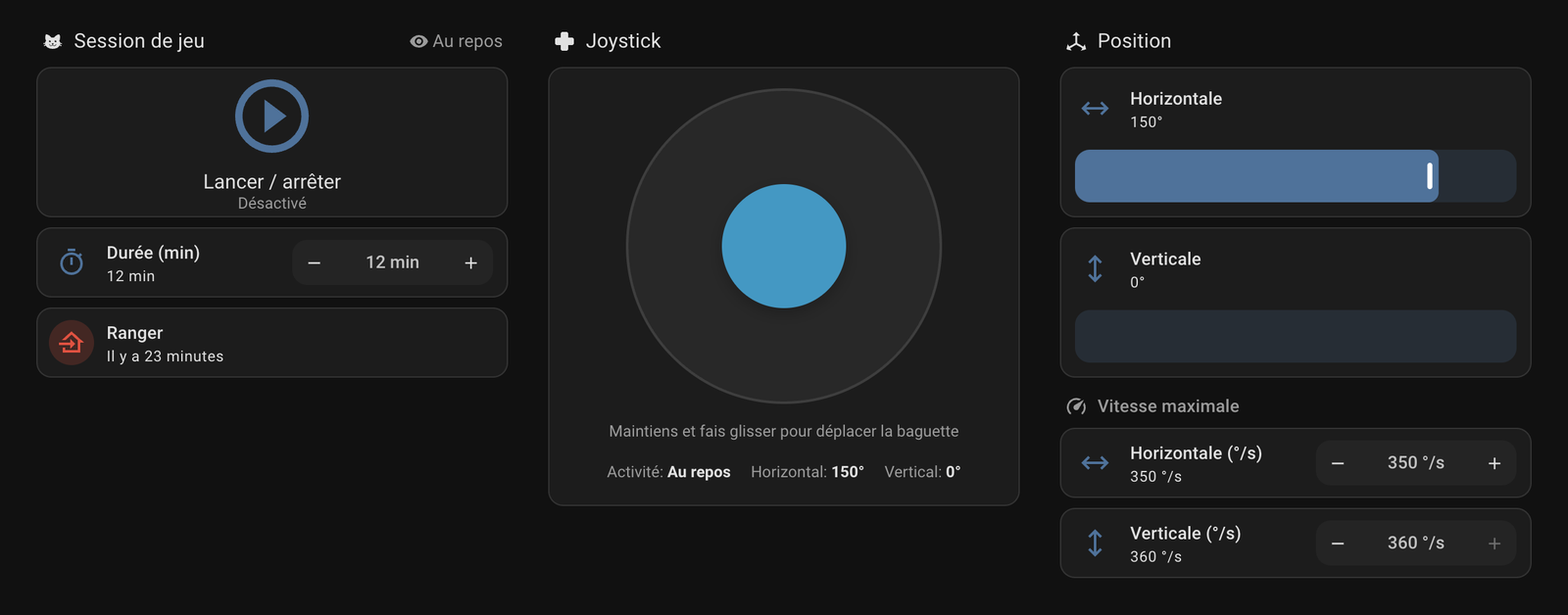
title: Cat wand
views:
  - title: Cat wand
    path: catwandconnect
    type: sections
    max_columns: 3
    sections:
      - type: grid
        cards:
          - type: heading
            heading: Play session
            icon: mdi:cat
            badges:
              - type: entity
                entity: sensor.catwandconnect_activity
                show_state: true
              - type: entity
                entity: update.catwandconnect_firmware
                show_state: true
                visibility:
                  - condition: state
                    entity: update.catwandconnect_firmware
                    state: "on"
          - type: button
            entity: switch.catwandconnect_play_session
            name: Play session
            icon: mdi:play-circle-outline
            show_state: false
            icon_height: 64px
            tap_action:
              action: toggle
            hold_action:
              action: more-info
          - type: tile
            entity: number.catwandconnect_session_duration
            name: Session duration
            features:
              - type: numeric-input
                style: buttons
            features_position: inline
          - type: tile
            entity: button.catwandconnect_stow
            name: Stow
            color: red
            tap_action:
              action: perform-action
              perform_action: button.press
              target:
                entity_id: button.catwandconnect_stow
      - type: grid
        cards:
          - type: heading
            heading: Position
            icon: mdi:axis-arrow
          - type: custom:catwandconnect-joystick-card
            entity: sensor.catwandconnect_activity
          - type: tile
            entity: number.catwandconnect_horizontal_position
            name: Horizontal
            features:
              - type: numeric-input
                style: slider
          - type: tile
            entity: number.catwandconnect_vertical_position
            name: Vertical
            features:
              - type: numeric-input
                style: slider
      - type: grid
        cards:
          - type: heading
            heading: Maximum speed
            icon: mdi:speedometer
          - type: tile
            entity: number.catwandconnect_horizontal_maximum_speed
            name: Horizontal
            features:
              - type: numeric-input
                style: buttons
            features_position: inline
          - type: tile
            entity: number.catwandconnect_vertical_maximum_speed
            name: Vertical
            features:
              - type: numeric-input
                style: buttons
            features_position: inline
The joystick works like the one on the robot's page: hold and drag, the wand follows; let go, it stops. It comes with the integration (0.1.1 or later): nothing to add under Resources. If it shows "Custom element doesn't exist", reload the page (pull down in the app) after updating. The position sliders go from one Travel limit to the other.
Added the robot with integration 0.1.0, in another language than English? Its ids are in that language (switch.catwandconnect_session_de_jeu) and the cards show "Entity not available". Either remove the robot from Settings → Devices & services → CatWandConnect and add it again (0.1.1 and later always use the English ids), or replace the ids in the YAML with yours from the device page.
MQTT connection dashboard
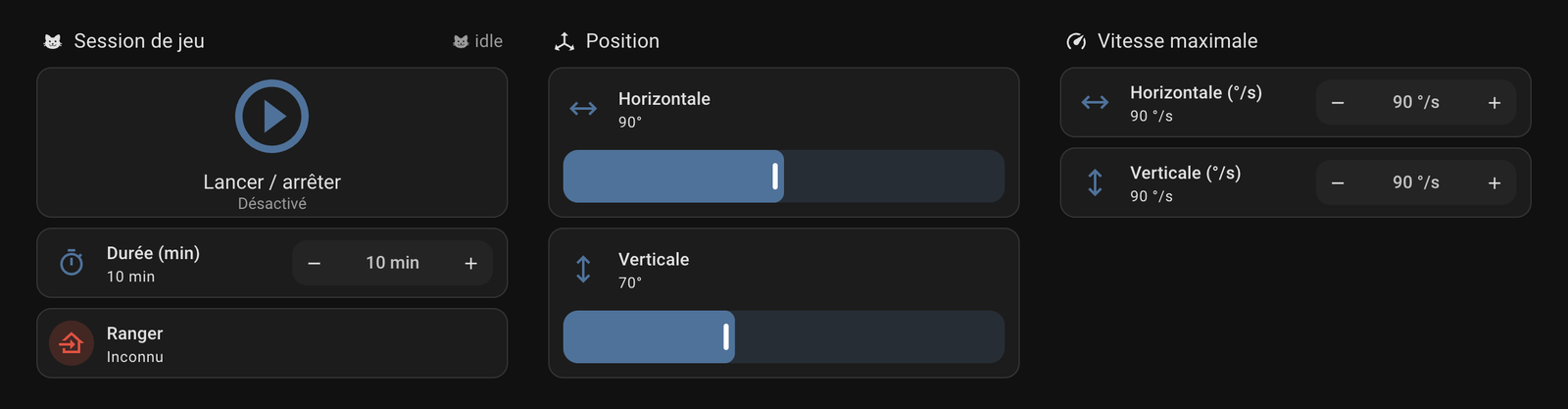
title: Cat wand
views:
  - title: Cat wand
    path: catwandconnect
    type: sections
    max_columns: 3
    sections:
      - type: grid
        cards:
          - type: heading
            heading: Play session
            icon: mdi:cat
            badges:
              - type: entity
                entity: sensor.catwandconnect_activity
                show_state: true
              - type: entity
                entity: update.catwandconnect_firmware
                show_state: true
                visibility:
                  - condition: state
                    entity: update.catwandconnect_firmware
                    state: "on"
          - type: button
            entity: switch.catwandconnect_play_session
            name: Play session
            icon: mdi:play-circle-outline
            show_state: false
            icon_height: 64px
            tap_action:
              action: toggle
            hold_action:
              action: more-info
          - type: tile
            entity: number.catwandconnect_session_duration
            name: Session duration
            features:
              - type: numeric-input
                style: buttons
            features_position: inline
          - type: tile
            entity: button.catwandconnect_stow
            name: Stow
            color: red
            tap_action:
              action: perform-action
              perform_action: button.press
              target:
                entity_id: button.catwandconnect_stow
      - type: grid
        cards:
          - type: heading
            heading: Position
            icon: mdi:axis-arrow
          - type: tile
            entity: number.catwandconnect_horizontal_position
            name: Horizontal
            features:
              - type: numeric-input
                style: slider
          - type: tile
            entity: number.catwandconnect_vertical_position
            name: Vertical
            features:
              - type: numeric-input
                style: slider
      - type: grid
        cards:
          - type: heading
            heading: Maximum speed
            icon: mdi:speedometer
          - type: tile
            entity: number.catwandconnect_horizontal_maximum_speed
            name: Horizontal
            features:
              - type: numeric-input
                style: buttons
            features_position: inline
          - type: tile
            entity: number.catwandconnect_vertical_maximum_speed
            name: Vertical
            features:
              - type: numeric-input
                style: buttons
            features_position: inline
The position sliders go from 0 to 180°; the robot stops at its Travel limits. A Firmware badge appears next to Activity when a new version is available; tap it for the release notes. The joystick card comes with the Native integration only; with the MQTT connection, move the wand with the sliders or from the robot's page.
Automations
In Settings → Automations & scenes → Create automation → Create new automation, three dots → Edit in YAML, paste one of these, then Save. They work with both connections.
Stow the wand every evening at 22:00:
alias: Put the cat wand away at night
triggers:
  - trigger: time
    at: "22:00:00"
actions:
  - action: button.press
    target:
      entity_id: button.catwandconnect_stow
Start a 15-minute Play session when you leave for work on weekdays:
alias: Play with the cat after we leave
triggers:
  - trigger: time
    at: "08:30:00"
conditions:
  - condition: time
    weekday: [mon, tue, wed, thu, fri]
actions:
  - action: number.set_value
    target:
      entity_id: number.catwandconnect_session_duration
    data:
      value: 15
  - action: switch.turn_on
    target:
      entity_id: switch.catwandconnect_play_session
Entity ids follow the robot's name: button.catwandconnect_stow by default, button.catwandconnect_salon_stow for a robot named "CatWandConnect salon". They are the same with both connections; ids ending in _2 mean the robot is connected twice (see Choose your connection). Automations on the Activity use its states idle, manual, stowing, calibrating, tuning_speed and playing, whatever language Home Assistant shows them in.
Troubleshooting
Troubleshooting the Native integration
| Problem | What to check |
|---|---|
| The robot isn't under Discovered | Add it by hand: Add integration → CatWandConnect, with its IP address (on its Info page) or .local name. Discovery uses mDNS, which doesn't cross networks: if Home Assistant and the robot are on different VLANs or subnets (an IoT network, a guest Wi-Fi), add it by IP and give the robot a fixed address in your router (a DHCP reservation), or turn on an mDNS reflector in the router. On Home Assistant Container, discovery needs host networking; in a virtual machine, a bridged network adapter (not NAT). A robot you have already added never shows there again. To see whether Home Assistant hears the robot, turn on Enable debug logging on the CatWandConnect integration page and restart it: each announcement adds a line Robot … announced at … to the log. |
| CatWandConnect isn't in Add integration | Home Assistant wasn't restarted after the download (step 1), or HACS downloaded nothing: open HACS and check the integration shows as downloaded. Then refresh the browser page. |
| This robot's firmware is too old for the integration | The robot runs a firmware older than 0.2.0-beta.2. Update it, then add it again. |
| Can't reach the robot | The robot is on, on the same network as Home Assistant, and its interface opens in a browser at the address you typed. |
| Home Assistant asks for the PIN again | The robot's Settings PIN changed. Click Reconfigure and type the current PIN. |
| Entities unavailable | The robot is off or off Wi-Fi. They come back by themselves within about 30 seconds of it reconnecting. If they stay unavailable, check that the robot's interface opens; if its IP changed and discovery can't see it (different VLAN), reserve its address in your router. |
| Play session won't start | Home Assistant says why: the robot isn't calibrated yet, or it is stowing, calibrating or tuning a speed. Calibrate it from its main screen. |
For a bug report, add the integration's diagnostics: on the robot's device page, the three dots → Download diagnostics. Your Wi-Fi name, addresses and broker details are hidden in it, like in the Diagnostic report.
Troubleshooting the MQTT connection
| Status in the robot's Settings | What to check |
|---|---|
| Can't reach the broker | The broker address and port 1883, and that the Mosquitto broker app is started (step 2). Use Home Assistant's IP instead of homeassistant.local. |
| The broker refused the user or password | The user and password from step 3. Retype the password in the robot (it never shows the saved one). The username can't be homeassistant or addons. |
| Connected, but no device in Home Assistant | The MQTT integration is set up (step 4) with discovery on and the prefix homeassistant. |
| Entities unavailable | The robot is off or off Wi-Fi. They come back within a minute of it reconnecting. |
| Play session switch flips back off | The robot is not calibrated yet, or it is stowing, calibrating or tuning a speed. Calibrate it from its main screen. |
The robot's MQTT topics are documented in the Device API. Home Assistant's device page has a Visit link to the robot's interface (MQTT discovery only allows one link per device, so it can't point to the Help page directly).
Still stuck?
See Getting help, or open Help in the robot's Settings → Robot. Bugs in the Native integration are reported in CatWandConnect's issues too: pick Home Assistant integration (HACS) as the area.